
New Navii Firmware
Expanding control. Enhancing performance Introducing Descent 2.0
Bionic Connect
Easily Update Your Lower Limb Bionic Devices
Keep your Össur bionic devices performing at their best with the Bionic Connect software. A simple, reliable tool for clinicians to install the latest firmware updates via your desktop.
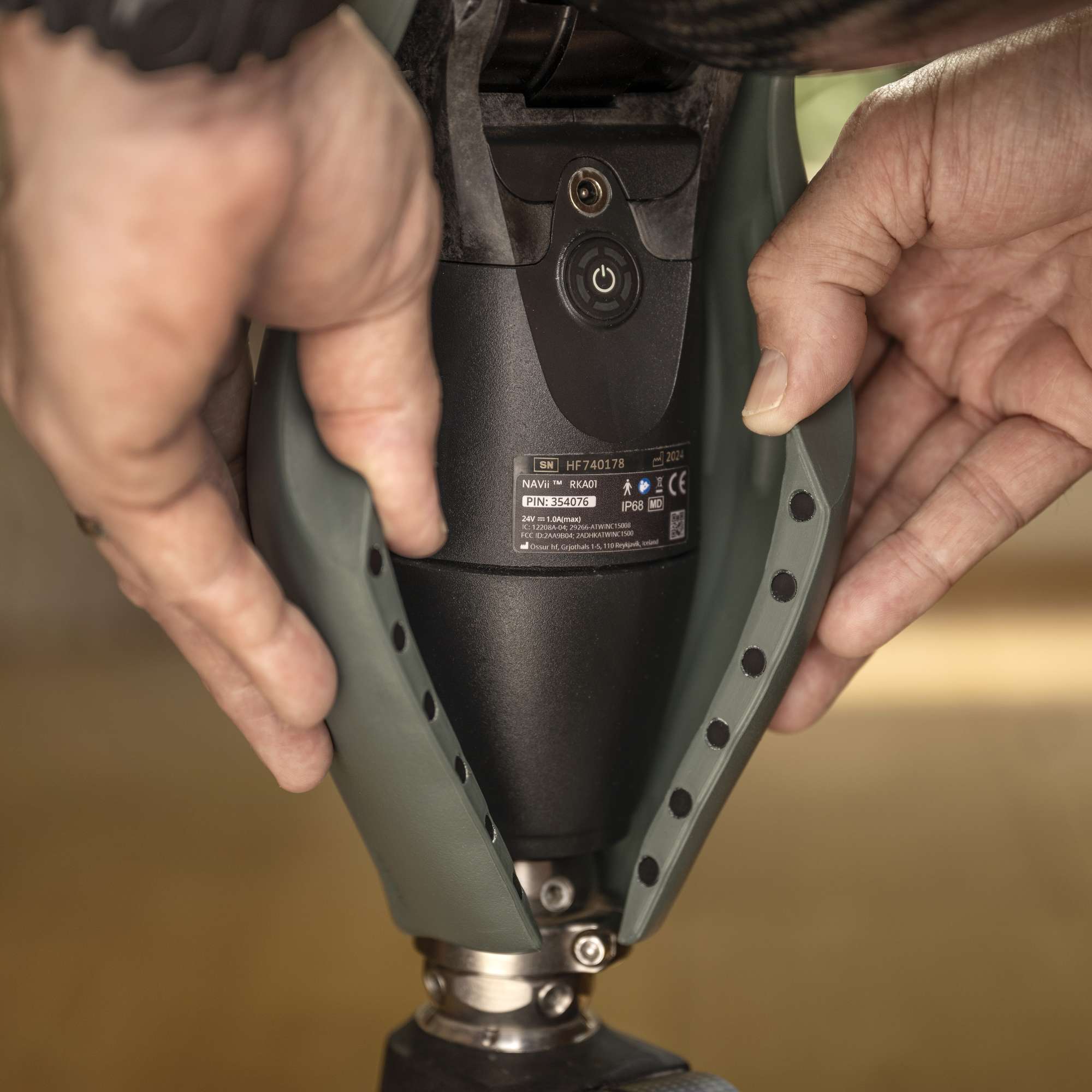
Firmware updates are currently available for Navii and certain Power Knee devices, with support for additional devices planned in future releases.
Bionic Connect
About the Software
Bionic Connect is a desktop application that allows Certified Prosthetists and Orthotists (CPOs) to securely install firmware updates to Össur’s bionic devices. Designed with ease of use in mind, the software ensures your devices remain up to date with the latest enhancements and improvements, no technical expertise required.
How to Use the Bionic Connect Software
Follow these three simple steps to keep your Össur bionic devices up to date. The process is quick, guided, and designed to fit seamlessly into your clinical workflow.
1. Download and Install the Software
Download the Bionic Connect software from the Microsoft Store or via the installer link. Installation takes less than 2 minutes and requires no special setup. If you're using a company-managed device, your IT department may need to assist.
2. Connect to the Device
Power on your bionic device and ensure it's not connected to any mobile apps (such as Össur Logic). Use Bluetooth to pair the device with your computer. Once paired, launch the Bionic Connect software, your device should appear as connected.
3. Check for Updates, Install and Reset
The software will automatically detect the device and check for available firmware updates. If an update is available, simply follow the on-screen prompts to install it. The process is guided and typically takes just a few minutes.
Download the Software
Select the version that matches your system. Installation is quick, typically under 2 minutes, and requires no special configuration.
Windows Installer
Microsoft Store
If you're using a company-managed laptop, your IT department may need to assist with the installation.
Latest Updates
Firmware updates are currently available for Navii and certain Power Knee devices, with support for additional devices planned in future releases.
Power Knee
Firmware: PKK3.MMR.03.03.150
Released: 15 October 2025
Navii
Firmware: 01.10.011
Released: 16 June 2026
System Requirements
Bionic Connect is compatible with Windows 10 and Windows 11. An active internet connection is required for downloading and installing firmware updates.
Don't know which version of Windows you have?
You can check your Windows version in one of the following ways:
Option 1: Using Settings
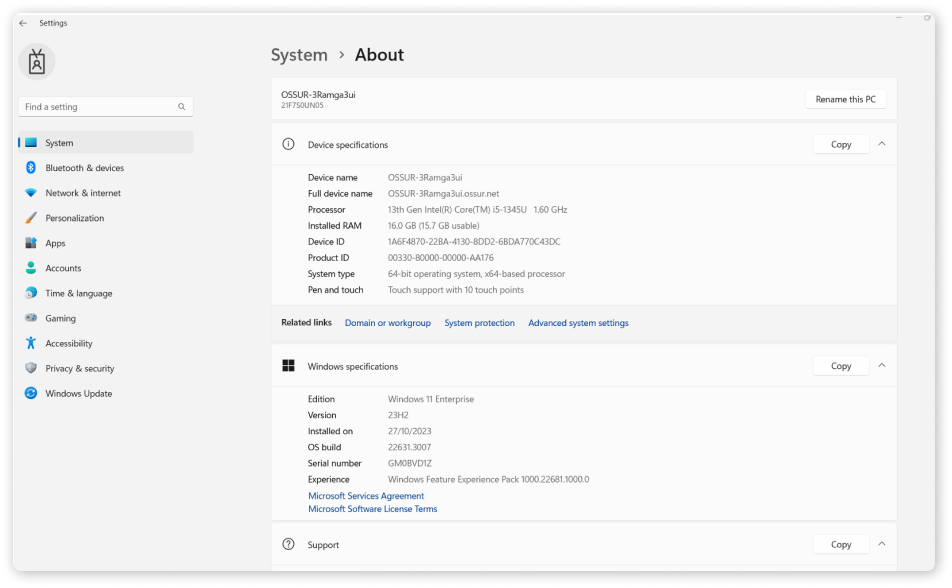
Go to Start > Settings > System > About. Under “Windows specifications,” you’ll see your edition and version.
Option 2: Using the Run command
Press Windows Key + R, type "winver", and press Enter. A pop-up window will display your Windows version.
Type "Winver" into the Run box and press OK or hit Enter, a window will appear displaying information.
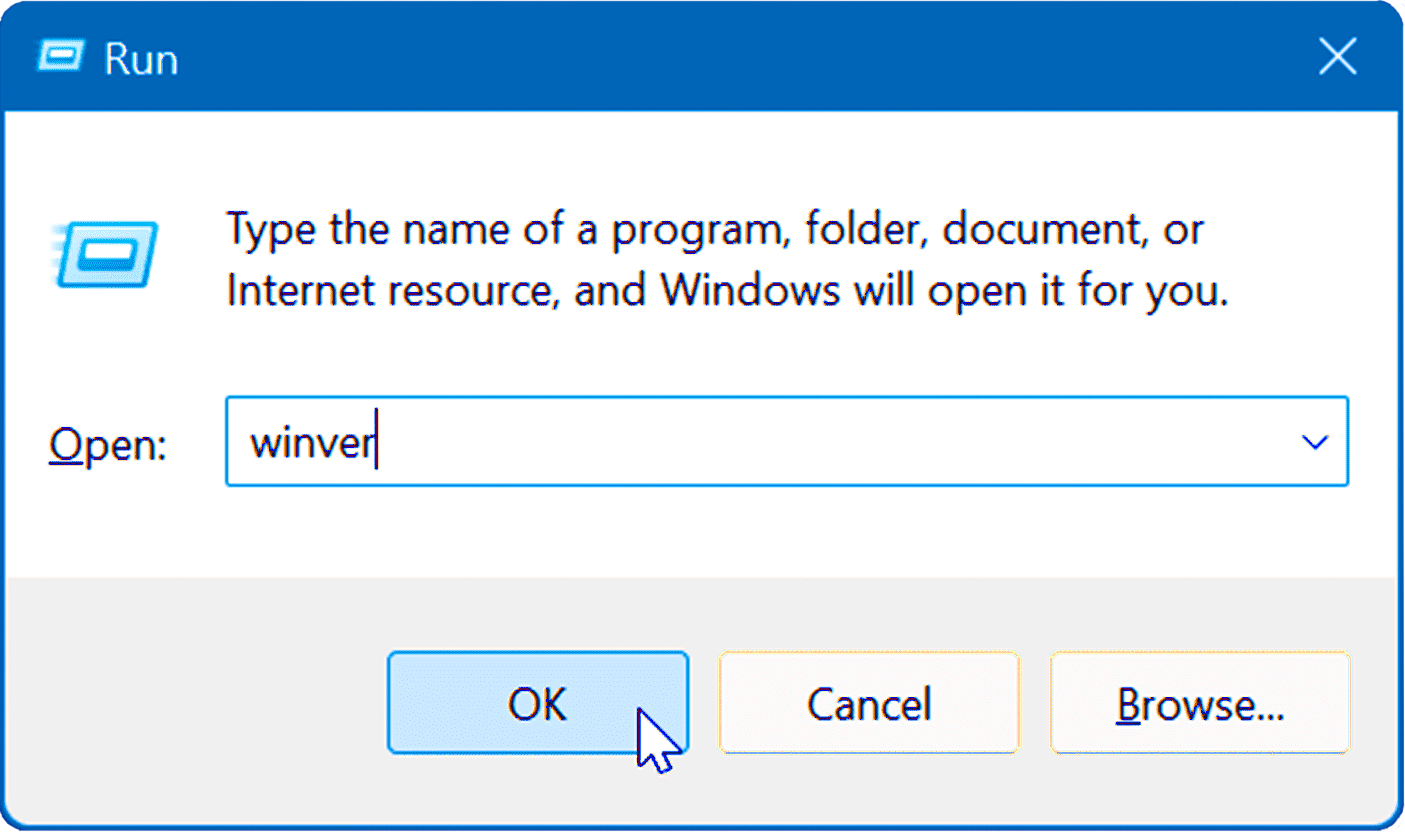
A window will appear displaying information

Frequently Asked Questions (FAQs)
Answers to common questions from clinicians using the Bionic Connect software.
Whether you're installing the software for the first time or performing routine updates, these FAQs cover the most frequent queries to help you get started quickly and confidently.
Software and Computer Questions
Q: How do I add a Bluetooth device on Windows 10?
A: To add a Bluetooth device on Windows 10, follow these steps:
- Open Start > Settings > Devices > Bluetooth & other devices.
- Make sure Bluetooth is turned on.
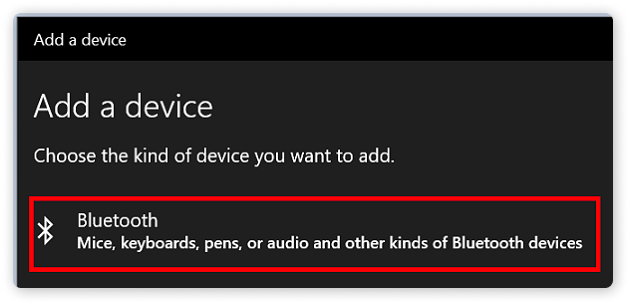
- Click Add Bluetooth or other device, then select Bluetooth.
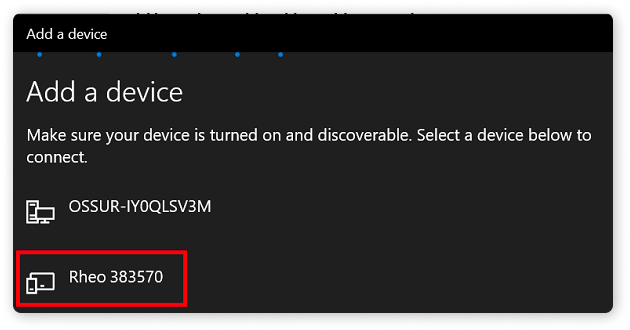
- Choose your device from the list and follow the on-screen instructions.
1. In the Settings window, select Bluetooth & Other Devices.
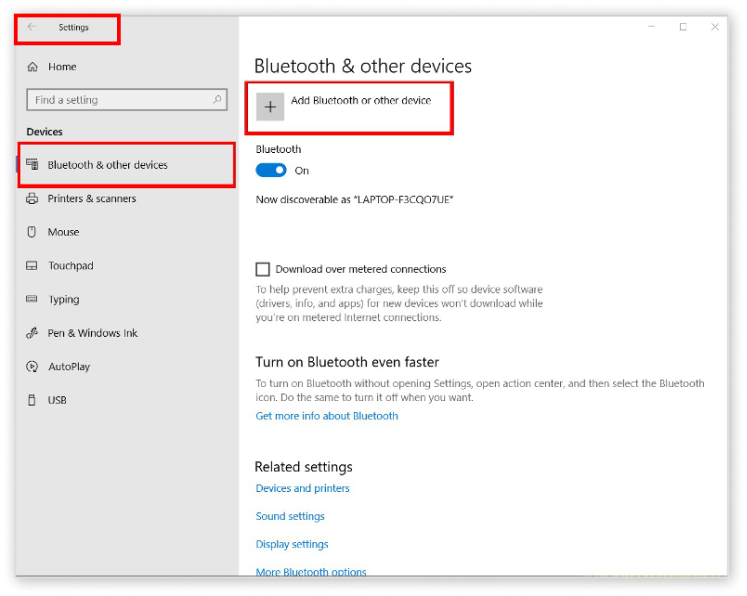
2. Select “Bluetooth: Mice, Keyboards, pens or audio and other kinds of Bluetooth devices”
3. Select your Device from the list
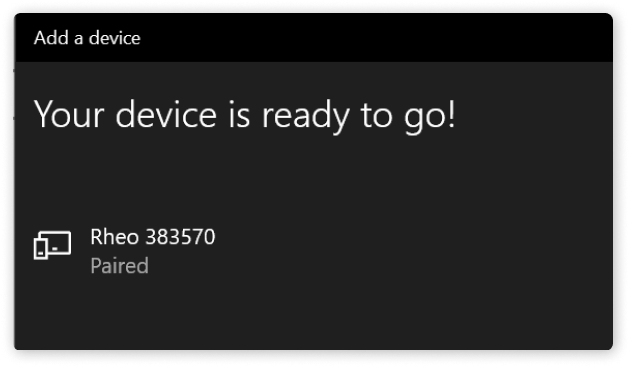
Your device should now be connected and ready to use with the Bionic Connect software.
Q: How do I add a Bluetooth device on Windows 11?
A: To add a Bluetooth device on Windows 11, follow these steps:
- Open Start > Settings > Bluetooth & devices.
- Ensure Bluetooth is turned on.
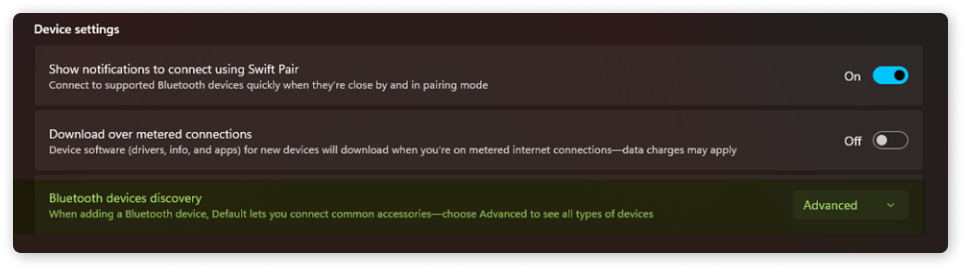
- Under Device Settings, set Bluetooth Devices Discovery to "Advanced"
- Select Bluetooth Devices Discovery and then select Add device,
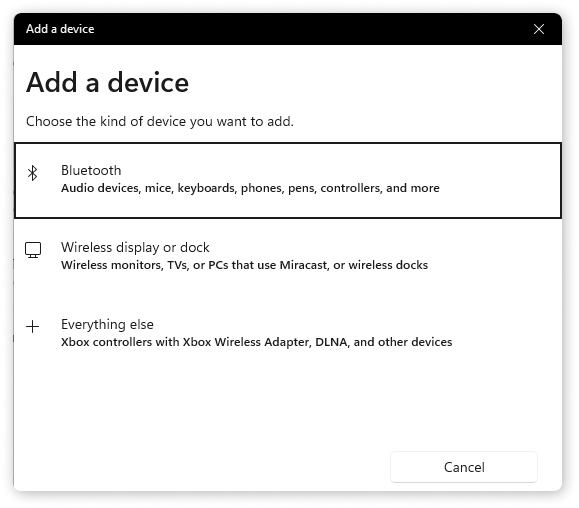
- Select “Bluetooth, audio devices, mice, …”
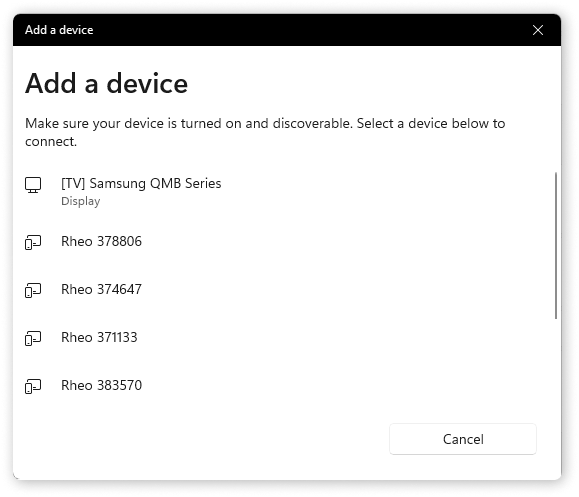
- Select your device from the list
1. In the Settings window, select Bluetooth & Other Devices.
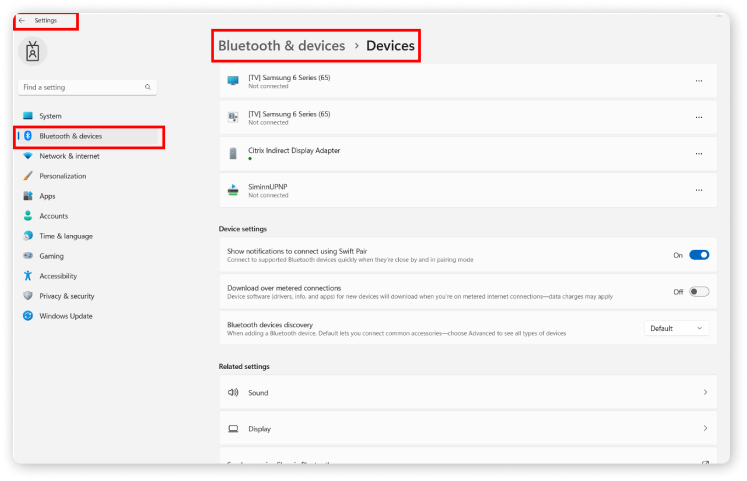
2. Under the "Device Settings" section, select “Bluetooth devices discovery” and change to “Advanced”
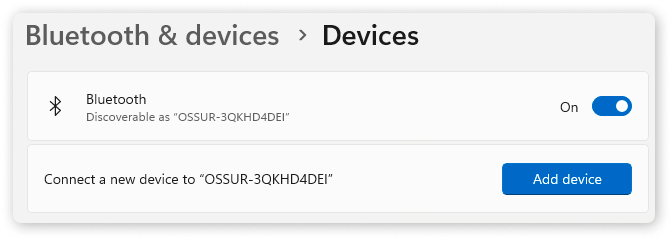
3. Select “Bluetooth devices discovery” and then “Add device”
4. Select “Bluetooth, audio devices, mice, …”
5. Select the device you would like to connect to from the list
Your device should now be connected and ready to use with the Bionic Connect software.
Q: Do I have the latest version of the Bionic Connect Software?
A: The Bionic Connect should update itself automatically when you start the program.
Q: Can I install the Bionic Connect on a Mac computer?
A: No, currently the Bionic Connect is only supported on Windows PCs.
Device Questions
Q: Will the firmware update erase the current device configuration?
A: No, the update process preserves all device-specific settings.
If you are working with an existing Power Knee patient and the device has been updated during service, it is important that you reset device settings and perform initial setup process. For clinical guidance or to report any issues you have encountered following the update, please contact your local Össur Academy. Click here to take our virtual training course.
Q: Do I need an internet connection to install new firmware on my device?
A: Yes, a stable internet connection is required to check for available firmware updates, download the update files, install them on the device, and verify successful installation.
Q: How will I know if a new device firmware update is available?
A: When you connect a supported device, the Bionic Connect software will automatically check for the latest available firmware. If an update is found, you’ll be prompted to install it. Additionally, Össur will notify clinicians directly, through email or other professional communication channels, when a new firmware version is released, so you’ll always be informed and prepared to update.
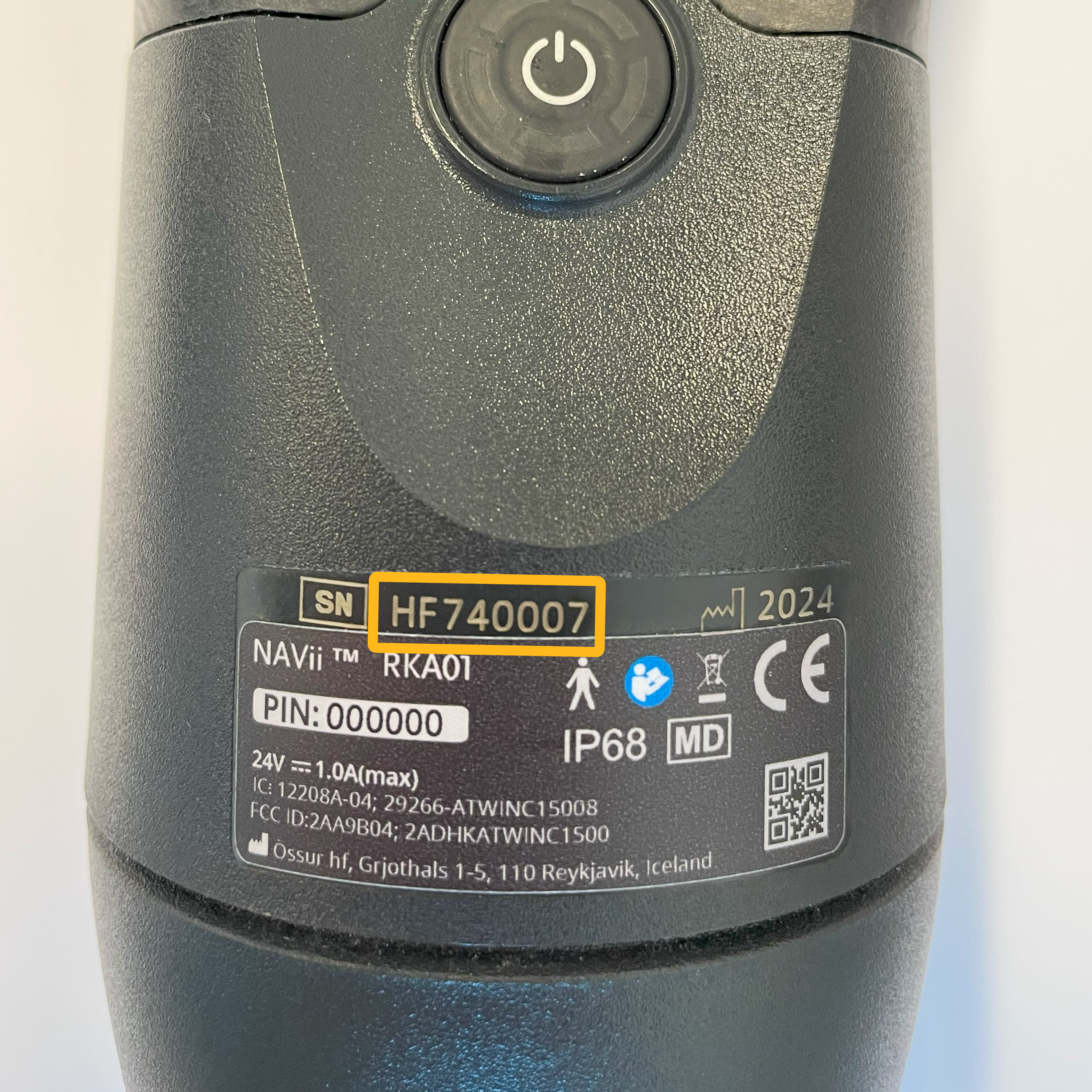
Q: Where do I find the Navii serial or PIN number?
A: The serial number and PIN code can be found on the device label, located on the back of the device beneath the power button.
- The serial number is marked with [SN] and begins with the letters "HF".
- The PIN code appears in a white box and follows the label "PIN:".
Be sure to enter both exactly as shown on the label when prompted by the Bionic Connect software.
Q: How do I know if my Power Knee is eligible for a firmware update?
If you would like to know if one of the Power Knee devices under your care are eligible for remote update using Bionic Connect, please contact your local customer service.
Power Knee can be updated with Bionic Connect only if it already has firmware version PKK3.MMR.03.00.000 or higher installed.
Q: Where can I find my device's current firmware?
A: You can view the current device firmware in Össur Logic.
- Open Össur Logic and connect to your device
- Tap the device image to open the Device details screen.
- The firmware version is shown next to the label “Firmware version.” Please note that the firmware version is defined by the last seven digits, for example: PKK3.MMR.XX.XX.XXX (Power Knee) and RKK4.MMR.XX.XX.XX (Navii).
Be sure to disconnect the device from Össur Logic before establishing a connection between the device and Bionic Connect.
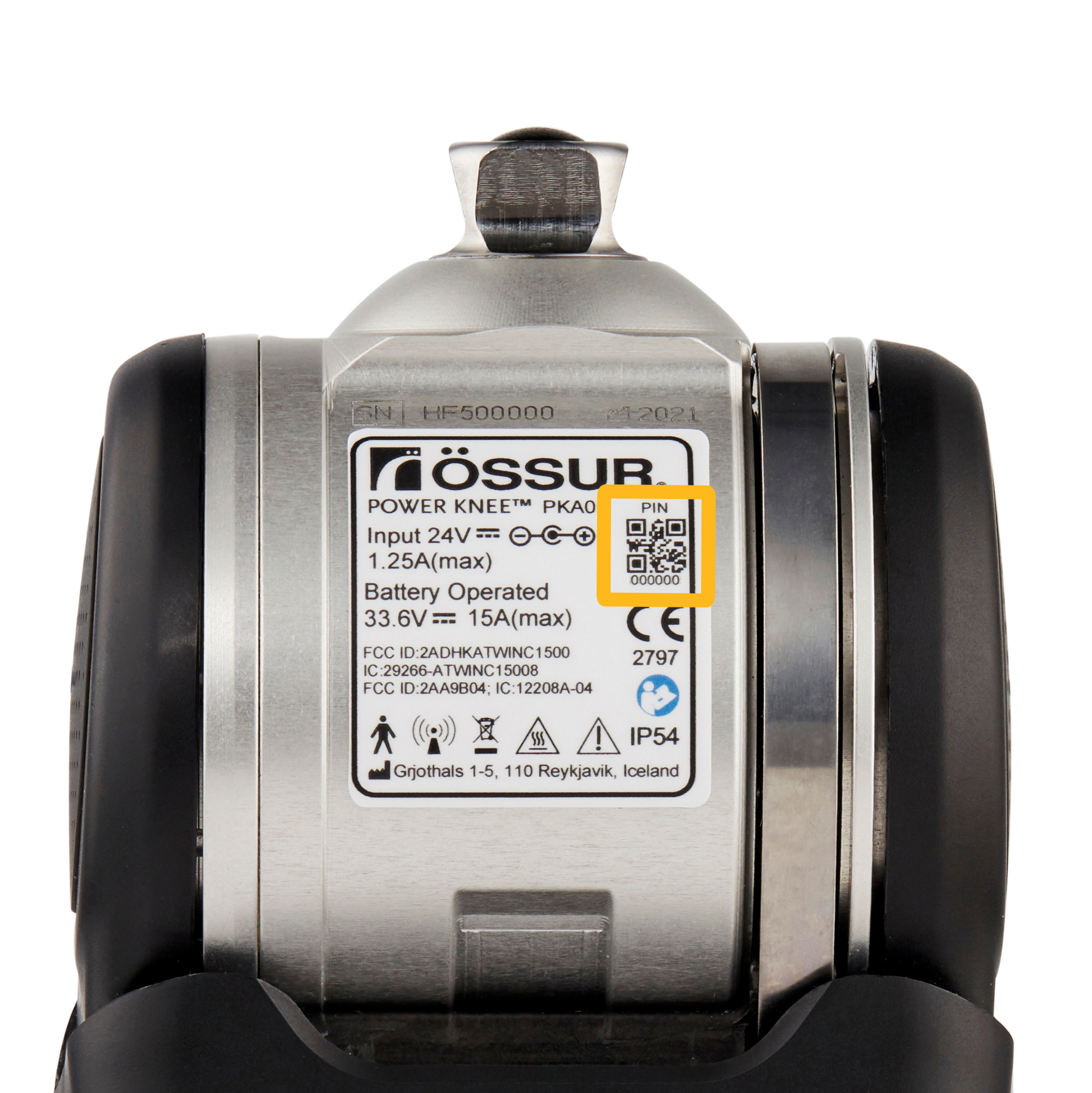
Q: Where do I find the Power Knee serial or PIN number?
A: The serial number and PIN code can be found on the device label, located on the back of the device beneath the power button.
- The serial number is marked with [SN] and begins with the letters "HF".
- The PIN code appears in a white box and follows the label "PIN:".
Be sure to enter both exactly as shown on the label when prompted by the Bionic Connect software.
Account Questions
Q: Do I need a separate account to use Bionic Connect?
A: No, you can sign in using your existing Össur Logic credentials. If you don’t have an account yet, simply click the “Sign Up” button within the Bionic Connect software to create one.
Q: I've registered an account, but I can't seem to log in?
A: After registering through the Bionic Connect software or the Össur Logic application, you’ll receive a verification email to activate your account. Please check your inbox (and your spam or junk folder) for this message.
Click the verification link in the email to complete the activation process, then try logging in again.
If you haven't received the email after a few minutes, try resending the verification or contact our support team for assistance.
Q: How do I reset my account password?
A: If you’ve forgotten your password, you can reset it by clicking the "Forgot password" link on the login screen in the Bionic Connect software.
Alternatively, you can reset your password directly by visiting: Reset Password
Troubleshooting
Having trouble with installation or device connection? Start here.
We’ve listed the most common issues and quick fixes to help you resolve them without delay. If you're still experiencing difficulties, our support team is here to assist you.
Issue: "Find Your Device" button remains disbaled after entering serial number and PIN code
If the "Find Your Device" button does not become active after entering the required information, try the following steps:
- Power cycle the device: Turn the device off, wait a few seconds, then turn it back on.
- Check for other connections: Ensure the device is not connected to Össur Logic on any mobile device. Disconnect it if necessary.
- Retry the connection: Return to the Bionic Connect tool and try again. The "Find Your Device" button should now activate.
If the issue persists, ensure Bluetooth is enabled on your computer and the device is in range. Still having trouble? Contact our technical support team for further assistance.
Issue: I can’t connect to my device in the Bionic Connect
If your device isn’t appearing in the Bionic Connect tool, try the following steps:
- Check that the device is powered on and has sufficient battery charge.
- Ensure the device is not connected to another mobile device nearby (e.g., Össur Logic on a smartphone or tablet). Disconnect if necessary.
- Verify that you’ve entered the correct serial number in the software.
- Make sure the device is paired via Bluetooth to your computer before launching the software.
Not sure how to do this? See the FAQs for step-by-step instructions for Windows 10 and Windows 11.
Not finding what you are looking for?
Contact Össur Technical Support for further assistance